For Mexican restaurant owners
Your Mexican restaurant’s own ordering site
Tacoter gives your kitchen its own branded ordering site, a menu you can edit whenever you want and a live order board.
Sign-up doesn’t ask for a card.
- 8
- Mexican-inspired themes in your dashboard, or your own brand colors
- 23
- tools in the owner dashboard today
- EN + ES
- the whole dashboard in English or Spanish


01Your website
Your own ordering website
Every restaurant gets its own branded ordering site, not a listing on a marketplace. Customers order from you directly.
- 01Your name, logo, menu, photos and hoursThe site shows your restaurant and nobody else. You edit the menu, photos and hours from your dashboard.
- 028 Mexican-inspired themes, or your own brand colorsPick a theme under Theme in your dashboard, or build one from your logo’s colors. Each theme’s text and button colors meet the WCAG AA contrast level. Change it any time; your menu stays the same.
- 03Your own Tacoter web addressYour site is live at tacoter.com/your-restaurant. Share that link anywhere you post.
- 04Made for ordering on a phoneOn a phone, the cart stays at the bottom of the screen while customers browse your menu.
Your own domainComing soon
Connecting a domain you own, like ordertacoselsol.com, isn’t available yet. Settings → Domain lists the steps it will take:
- Buy the domain from any provider.
- Add a CNAME record that points www to your-restaurant.tacoter.com.
- Wait for the DNS change to take effect.
- Contact us so we can verify the domain and issue the SSL certificate.
Already have a website?
Keep it. Add Tacoter online ordering, chat, gift cards, a deals sign-up, your menu and your jobs to the site you already have on Wix, Squarespace, WordPress, GoDaddy, Shopify or custom HTML.
See website widgetsOpen today · 11:00 AM – 10:00 PM
Tacos
- Tacos al pastor$3.50Add Tacos al pastor
- Carne asada$3.75Add Carne asada
- Elote$4.00Add Elote
Pick a theme to recolor the preview. It uses the same colors as the live themes.
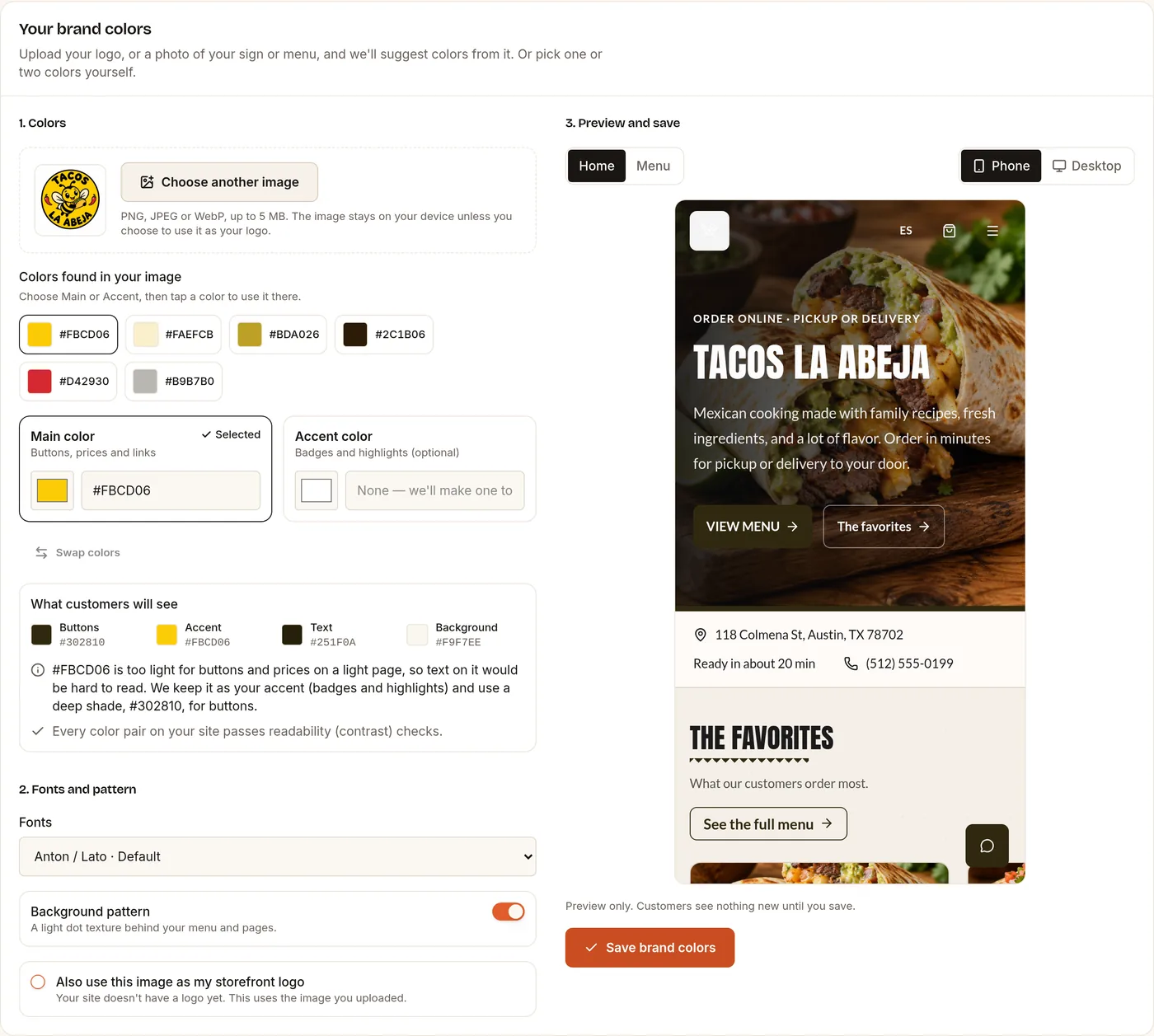
Your brand colors
Start from your logo, sign or menu
Upload a photo of your logo, sign or menu and Tacoter suggests colors from it, or pick your own with a color picker or hex code. The rest of your site’s colors are worked out for you.
- Choose a main color and an optional accent, and swap them with one click.
- If a color is too light for buttons, we say so, keep it as your accent and use a deeper shade for buttons.
- Preview your own site on a phone and a desktop before you save.
- Your QR code printouts use the same colors.
02How it works
From sign-up to your first order
- 01
Sign up
Enter your restaurant’s name, address and phone, choose your web address and a theme, add your first dishes and create your account.
- 02
Make it yours
From your dashboard, add dish photos and set your hours, prep time, minimum order and delivery radius. Under Theme, switch to any of the 8 themes or your own brand colors.
- 03
Take orders
When sign-up is done, your site is live at tacoter.com/your-restaurant. Share the link, and new orders arrive on your order board with a sound alert.
03Core features
What’s inside Tacoter
Tools to take orders, bring customers back and run the week. Everything here is in the owner dashboard today unless it says coming soon.
Ordering & menu
01
Orders board
New orders land on a live board with sound alerts. Move each one along with a tap.
Learn more: Orders board02
Menu editor
Add categories, dishes, photos and prices. Mark a dish sold out with a switch.
Learn more: Menu editor03
QR code table ordering
Print a code for each table. Guests order and pay from their phone, and the order shows their table.
Learn more: QR code table ordering04· AI
Menu scanner
Take a photo of your paper menu and get an online menu you can edit.
Learn more: Menu scanner05· AI
Checkout add-ons
Suggests add-ons at checkout based on what’s already in the cart.
Learn more: Checkout add-ons06
Gift cards
Sell gift cards on your ordering site and see each card’s balance.
Marketing & loyalty
07
Text campaigns
Send texts to customers who agreed to get them. Opt-out replies are honored.
08
Email campaigns and automations
Send campaigns, plus automatic welcome, win-back, post-order and abandoned-cart emails.
Learn more: Email campaigns and automations09· AI
Loyalty program
Reward repeat customers and see which rewards bring each group back.
Learn more: Loyalty program10· AI
Review replies
Drafts a reply to each review in your voice, ready to edit and send.
Learn more: Review replies11· AI
Social posts
Writes Instagram and Facebook captions with your photos and schedules them.
Learn more: Social posts
Operations
12
Analytics
Visitors, orders, conversion rate and revenue for the period you pick.
13· AI
Demand forecast
Predicts how much of each ingredient you’ll need, updated every day.
Learn more: Demand forecast14· AI
Food waste tracking
Shows which ingredients go to waste and what to buy or change instead.
Learn more: Food waste tracking15· AI
Staff scheduling
Recommends how many people to schedule per shift from your order history.
Learn more: Staff scheduling16
Food safety logs
Fridge, freezer and hot-holding temperatures and daily checklists, with a history you can export.
Learn more: Food safety logs17
Hiring
Post jobs on the Tacoter job board and review applications in one place.
Learn more: Hiring18
English and Spanish
Use the whole dashboard in English or Spanish and switch any time.
Learn more: English and Spanish
El Jefe & AI tools
19· AI
El Jefe Morning Brief
A short report each morning on sales, stock and what needs your OK.
Learn more: El Jefe Morning Brief20· AI
El Jefe Chat
Ask about your restaurant or request changes, in Spanish or English.
Learn more: El Jefe Chat21· AI
Recipe ideas
Suggests new dishes from ingredients you already stock, with a suggested price.
Learn more: Recipe ideas22· AI
Feedback summary
Reads reviews and messages and sums up what customers like and don’t.
Learn more: Feedback summary23· AI
Website chatbot
Answers questions about your menu, hours and delivery area on your ordering site.
Learn more: Website chatbot24Coming soon
Phone and text ordering
Your restaurant gets its own number; AI takes orders by call or text and sends them to your board.
Get your ordering site
Create your account, add your menu and pick a theme or your own brand colors.
04Questions
Questions owners ask
More answers: All questions · Step-by-step guides
Can I keep my existing website?
Yes. Add Tacoter ordering, chat, gift cards, sign-ups, a menu or jobs to the website you already have.
Why is my widget missing?
Check Allowed websites, publish your site, and include both the loader and the widget container. The standard loader alone does not choose a widget. See the Adding Tacoter to Your Website guide in the help center.
What QR codes can I make?
Under Marketing › QR codes you can print eight designs: table tents, counter signs, window posters, flyers, takeout bag stickers, business cards, receipt and bag inserts, and a minimal QR in four sizes. Every code opens your Tacoter menu.
How do I download and print a QR code?
Pick a design, choose the language and headline, check the preview and the print checks, then click Download PDF. You can also download just the code as an SVG or a 2000 px PNG. Print at 100% or Actual size, not Fit to page.
Can I use my logo's colors for my ordering site?
Yes. On the Theme page, open Your brand colors and upload your logo or a photo of your sign or menu (PNG, JPEG or WebP, up to 5 MB). Tacoter suggests colors from it and skips near-white and near-black. You can also type a hex code or use the color picker.
What if my brand color is too light?
Tacoter tells you, keeps it as your accent for badges and highlights, and uses a deeper shade (or your other color) for buttons so text stays easy to read. Every color pair on your site passes readability (contrast) checks.
How do I know where my orders come from?
Every online order has a Where from label on your Orders page: Tacoter marketplace, Your marketing, Direct, Search or Other. You can filter by it, and Analytics shows orders and revenue by where customers came from.
How long does a visit count toward an order?
7 days. The latest tracked visit in the last 7 days gets the credit, and typing your address or using a bookmark doesn't erase it. Phone, text, group and chat orders on your Tacoter site aren't tracked.
Tacoter for restaurants
Do you own a restaurant?
Create your account, add your menu and pick a theme. Your site goes live at your own tacoter.com address. We handle the site; you handle the salsa.
Sign-up doesn’t ask for a card.