Why Tacoter · 14 / 14
Food safety logs, off the clipboard.
Record fridge, freezer and hot-holding temperatures and your opening, closing and cleaning checklists on a phone or tablet, and keep a history you can show an inspector.
Already on Tacoter? Open Food safety
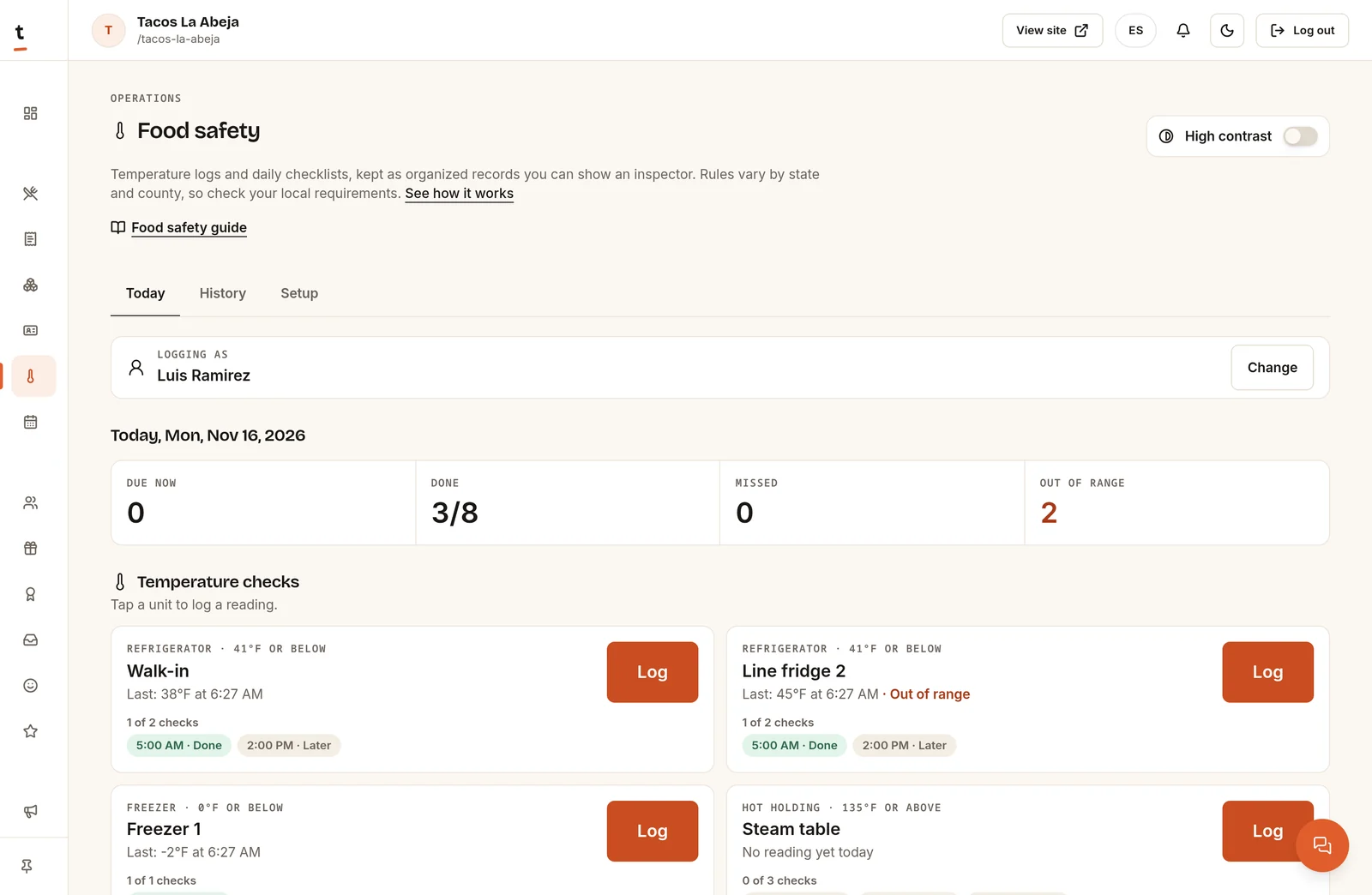
What it does
Everything the clipboard did, kept in order
Food safety is a section of your owner dashboard, next to Staff under Operations.
- 01
Temperature logs with safe ranges
List each fridge, freezer, steam table or cooling unit with its safe range and check times. Staff type the reading on a large number pad. A reading outside the range is flagged, and it can’t be saved until someone picks a corrective action, such as adjusting the thermostat, moving the food or calling for repair.
- 02
Opening, closing and cleaning checklists
Start from ready-made templates and edit them to fit your kitchen. Set each list for every day, specific days or once a week. Items are checked off one tap at a time, skipping one needs a reason, and you see progress like “6 of 9 done”.
- 03
Who did what, and when
Every entry saves the name of the person logging and the time, in your restaurant’s time zone. Staff pick their name from your team list on a shared device, so they don’t need their own accounts.
- 04
History and export for inspections
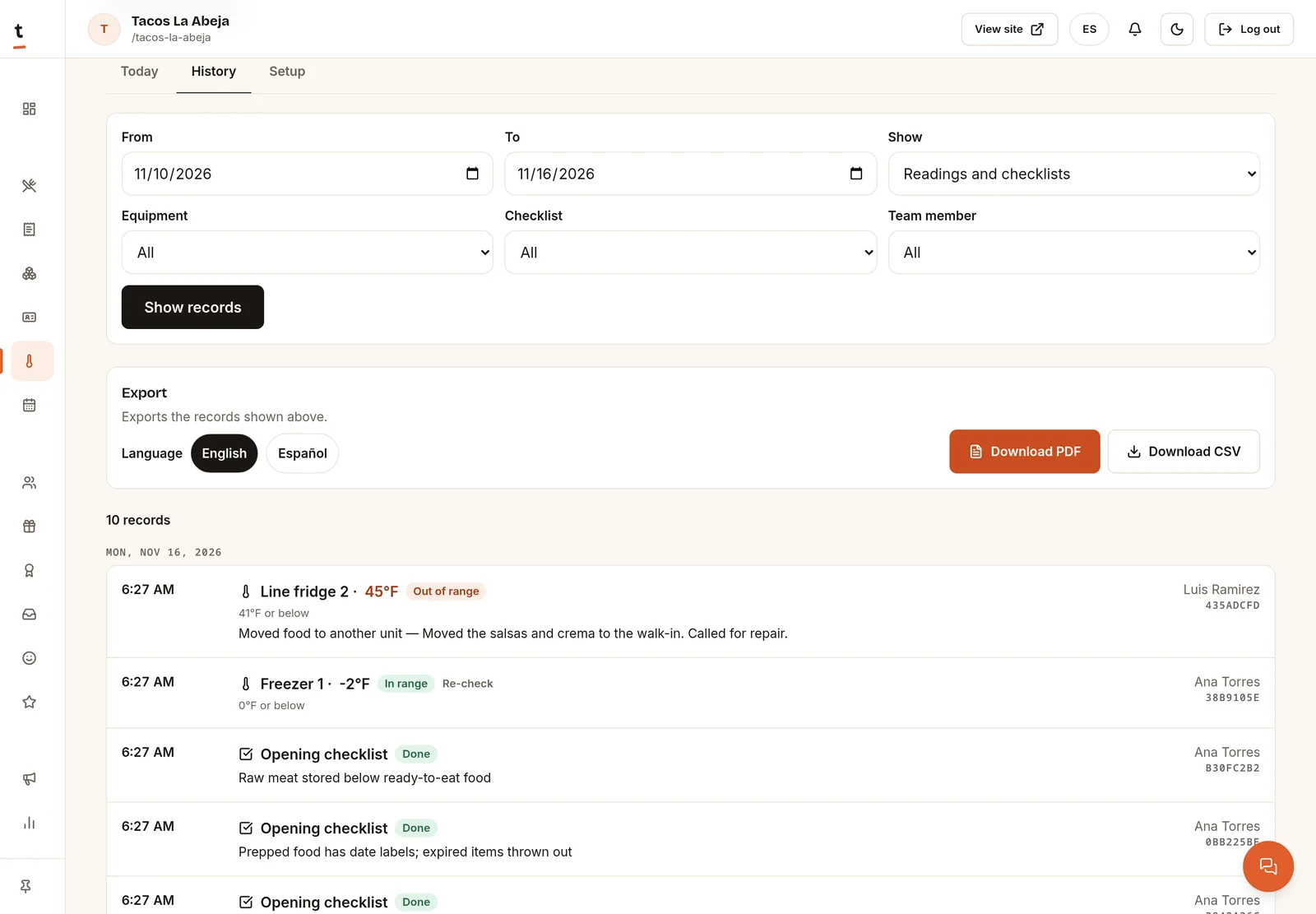
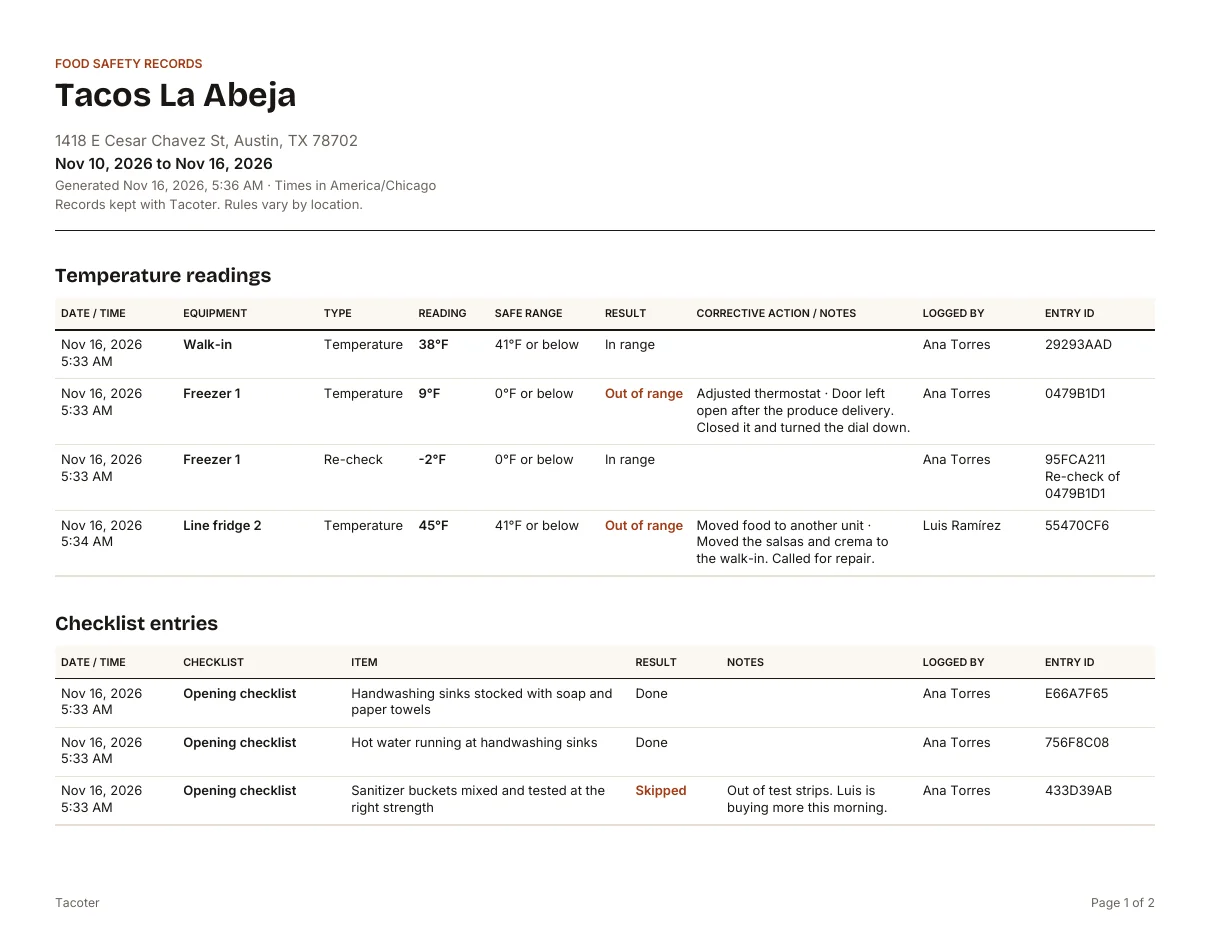
Look back by date range and filter by equipment, checklist or team member. Download the records as a PDF in English or Spanish, or as a CSV spreadsheet, with your restaurant’s name and address on them.
How it works
Three steps
- 01
Set up your equipment and checklists
In Food safety → Setup, add each unit with its type, safe range and check times, then add checklists from the templates.
- 02
Staff log on a phone or tablet
On the Today tab, staff choose who is logging, tap a unit, type the reading and save. Checklists are checked off item by item.
- 03
Review and export
Today shows which checks are due, done and missed. History keeps every entry, ready to download or print.
Optional alerts for out-of-range readings, missed checks and unfinished checklists appear in your dashboard bell. They’re off until you turn them on.
In the dashboard
What your kitchen sees
These are screenshots of Food safety in the Tacoter dashboard, with a made-up restaurant.
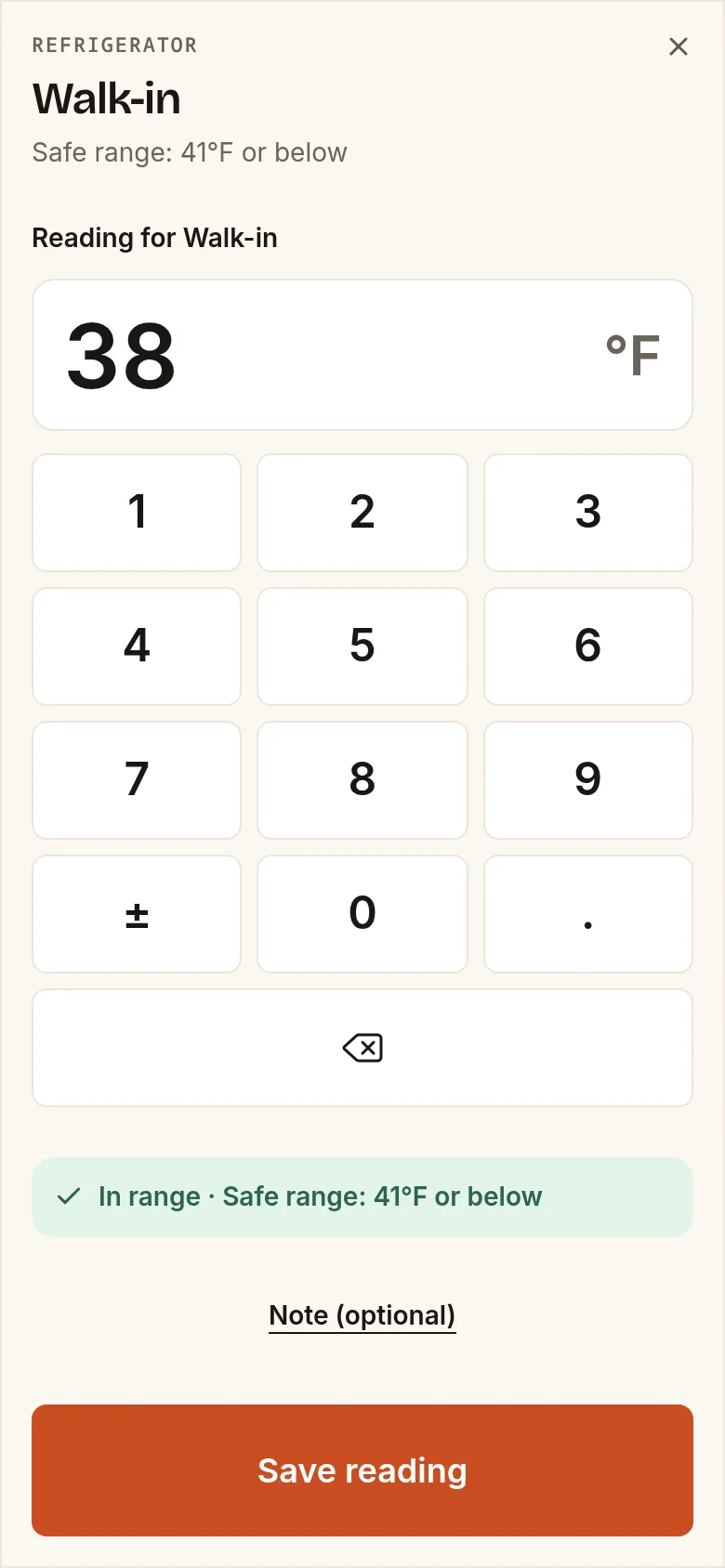
Logging a reading: tap the unit, type the number, save. 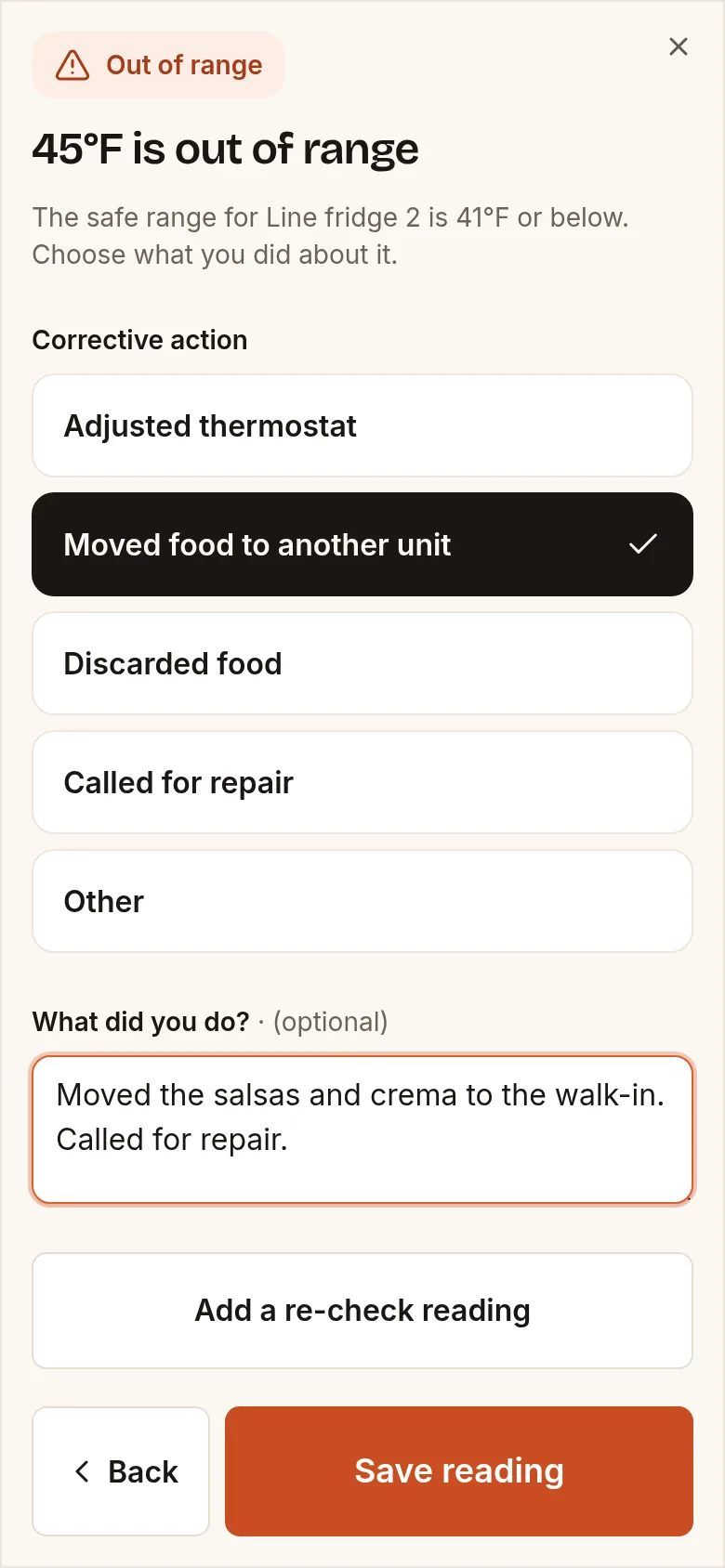
Out of range: choose what was done before the reading is saved. 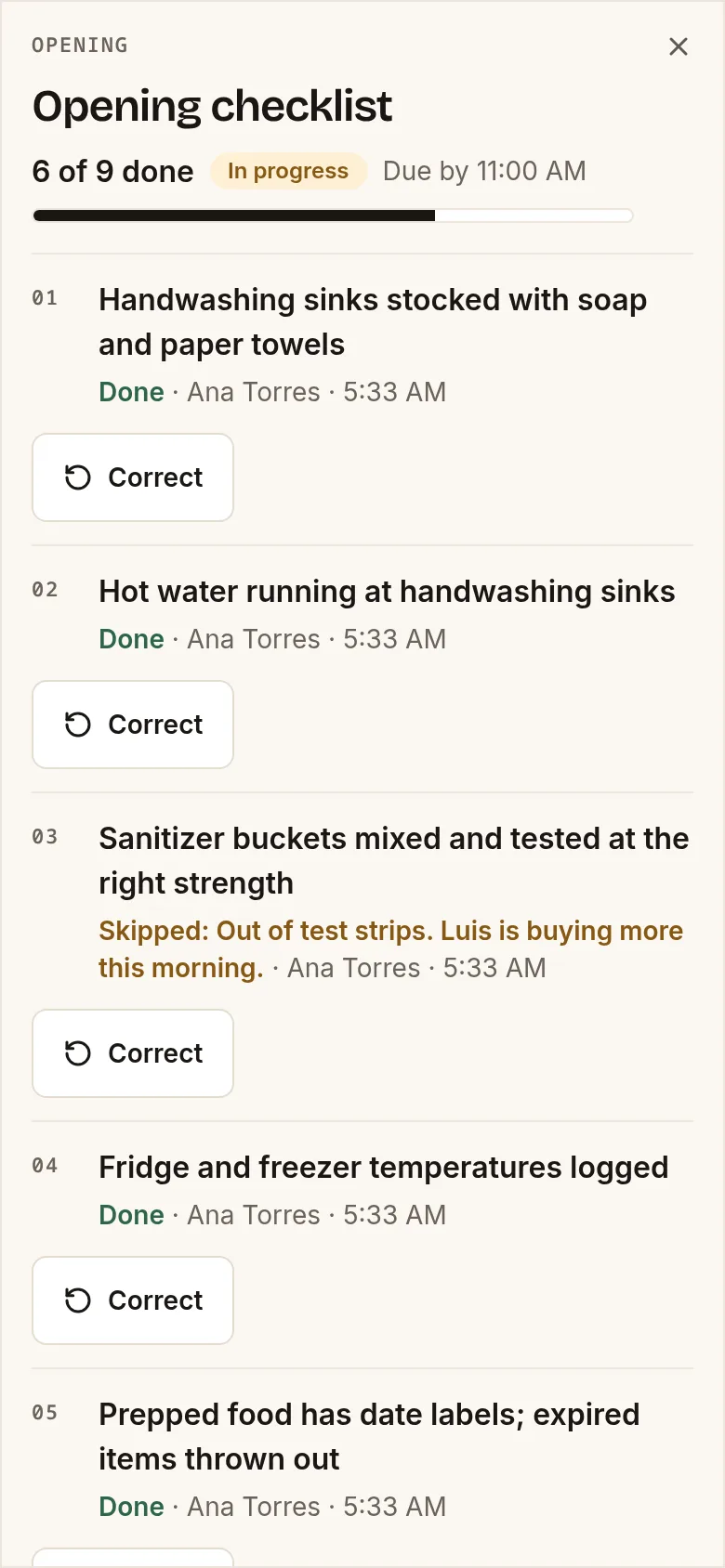
Checklists: one tap per item. A skipped item needs a reason.
Good to know
Built for a real kitchen
English and Spanish
Use Food safety in English or Spanish and switch any time. The checklist templates come in both languages, and the PDF export can be in either.
Made for shared kitchen tablets
Big buttons and a number pad for wet or gloved hands, and a high-contrast mode for bright kitchens. Each device remembers who is logging until someone changes it.
No silent edits
Saved readings and checklist entries can’t be changed or deleted. A correction is saved as a new entry with its reason, and the history shows both.
°F or °C
Choose Fahrenheit or Celsius for your restaurant. Safe ranges start from common guidance, and you can change them for each unit.
Questions
Food safety log questions
Does this make my restaurant compliant?
No tool can promise that. Food safety rules vary by state and county, and your local health department decides what it requires. Tacoter keeps organized temperature logs and checklists that you can show an inspector. Check your local rules and set your safe ranges and checklists to match them.
What do I need, a phone or a tablet?
Either one works, and so does a computer. Food safety runs in the web browser of a device signed in to your Tacoter dashboard. Many kitchens keep one shared tablet. Before logging, each person picks their name from your team list, so staff don’t need their own accounts.
Can staff use it in Spanish?
Yes. The whole Food safety section works in Spanish or English, and anyone can switch the language. The ready-made checklists come in both languages.
Can I print logs for an inspector?
Yes. In History, choose the dates and any filters, then download a PDF in English or Spanish to print, or a CSV to open in a spreadsheet. Both include your restaurant’s name and address, each reading and checklist entry, corrective actions, corrections and who logged them.
Can I change the safe temperatures?
Yes. New units start from common guidance: cold holding at 41°F (5°C) or below, freezers at 0°F (-18°C) or below and hot holding at 135°F (57°C) or above. That’s a starting point, not the rule for your area. Edit each unit’s range in Setup to match what your local rules require.
What happens if a reading is out of range?
It’s flagged right away and can’t be saved until the person picks a corrective action, such as adjusting the thermostat, moving or discarding the food or calling for repair, with an optional note. They can add a re-check reading after fixing the problem. If you turn on the out-of-range alert, it also shows in your dashboard bell.
Can someone change a reading later?
Not silently. Saved entries can’t be edited or deleted. If a reading was wrong, use Correct: the correction is saved as a new entry with a reason, and the original stays in the history next to it.
Setup steps and troubleshooting are in the help center. Read the food safety guide
Tacoter for restaurants
Take your food safety logs off the clipboard.
Claim your restaurant’s page, then open Food safety in your dashboard to add your equipment and checklists.